
Post
ssg 1.9.10: Edit and Design in the Browser
A site built with ssg lives in a repository. That suits the person who set it up. It suits less well the person who only wants to fix a headline, add a post with a photo, or make the grey text a little darker, and who has no checkout, no editor and no wish to learn git.
1.9.10 adds two optional Cloudflare Workers for them:
editor-ui: the site's Markdown articles and images, edited in the browser.designer-ui: every ssg setting, the theme's colours and fonts with a contrast check, and the theme's files.
Neither keeps a database. Each publication is one commit to the site's GitHub repository, with the signed-in person as its author, and the site's own CI builds and deploys it as after any push. Both offer the same operations to scripts and AI assistants over REST and MCP.
This post goes from an empty repository to a published post with a pasted image and a changed colour, then does the same through an assistant.
About the screenshots. They come from the local preview servers that ship with the two templates: the workers' real code, an in-process stand-in for GitHub seeded with an invented site, and demo accounts. They do not come from a live Cloudflare deployment, and no real repository was written to. All data in them is fictional: the articles, people, accounts and addresses were made up for the demo, and every address is on an example domain.
The shape: one commit per publication, visible conflicts
A few decisions run through both workers:
- The repository is the only store. History is the repository's history. Unsent drafts stay in the browser.
- One publication, one commit. The article and its pasted images go together, never as a series of commits per file. The branch is never force-pushed.
- A conflict is shown, never resolved silently. Every read carries the file's version. If someone changed the same file in between, nothing is written and you see both versions.
authaccounts only. These workers write to your repository, and every commit needs an author and a permission for that action. A shared password gives neither, so there is no password mode.- No pull requests in this version. A publication is a commit on the configured branch. A branch that requires pull requests refuses it with a clear error.
1. An empty repository
Start a site and push it to a new GitHub repository:
1ssg init kitchen --domain example.com
2git init -b main
3git add .
4git commit -m "Start the kitchen site"
5git remote add origin [email protected]:<owner>/kitchen.git
6git push -u origin main
Then give the repository a workflow that builds and deploys on every push to
main (DEPLOYMENT). The two workers rely on
it: they commit, and CI publishes.
To change colours in the browser later, the theme must be in the repository
and declare its colours in a tokens.css. The simple theme that ssg init
picks is built into ssg and has no such file. The screenshots below use
ssgtheme, copied into templates/ssgtheme/ of the repository and named in
template:.
2. Accounts first
Both workers check the session of the auth worker
themselves, so auth must run on the same host as the site. If it already
does, skip this. Otherwise the admin guide sets it up: its
database, a signing key, the first owner and their second factor.
3. The editor in three steps
1ssg new worker editor-ui
2cd workers/editor-ui
- Repository. In
wrangler.toml:EDITOR_GIT_REPO = "github.com/<owner>/kitchen"andEDITOR_GIT_BRANCH = "main". The worker reads the rest (content folders, languages, shortcodes, media folder) from.ssg.yamlon that branch. - Key. A fine-grained GitHub token for this one repository, with the
repository permission Contents set to read and write and nothing else,
stored with
npx wrangler secret put EDITOR_GIT_TOKEN. Without the workflows permission, GitHub itself refuses changes to.github/workflows/. - Auth.
EDITOR_AUTH_ISSUER,EDITOR_AUTH_LOGIN_URLandEDITOR_AUTH_PUBLIC_KEY, the same three lines every panel uses withauth.
Then npx wrangler deploy, and grant a role in the accounts panel. An
"Author" role with editor-ui:read, editor-ui:publish and
editor-ui:media writes and adds images. The exact clicks on GitHub, the
permissions and the error answers are in the editor guide.
4. A post with a pasted image
/editor/ opens on the list of articles: every Markdown file in the
site's content folders, with section, language, date and whether it is
published.
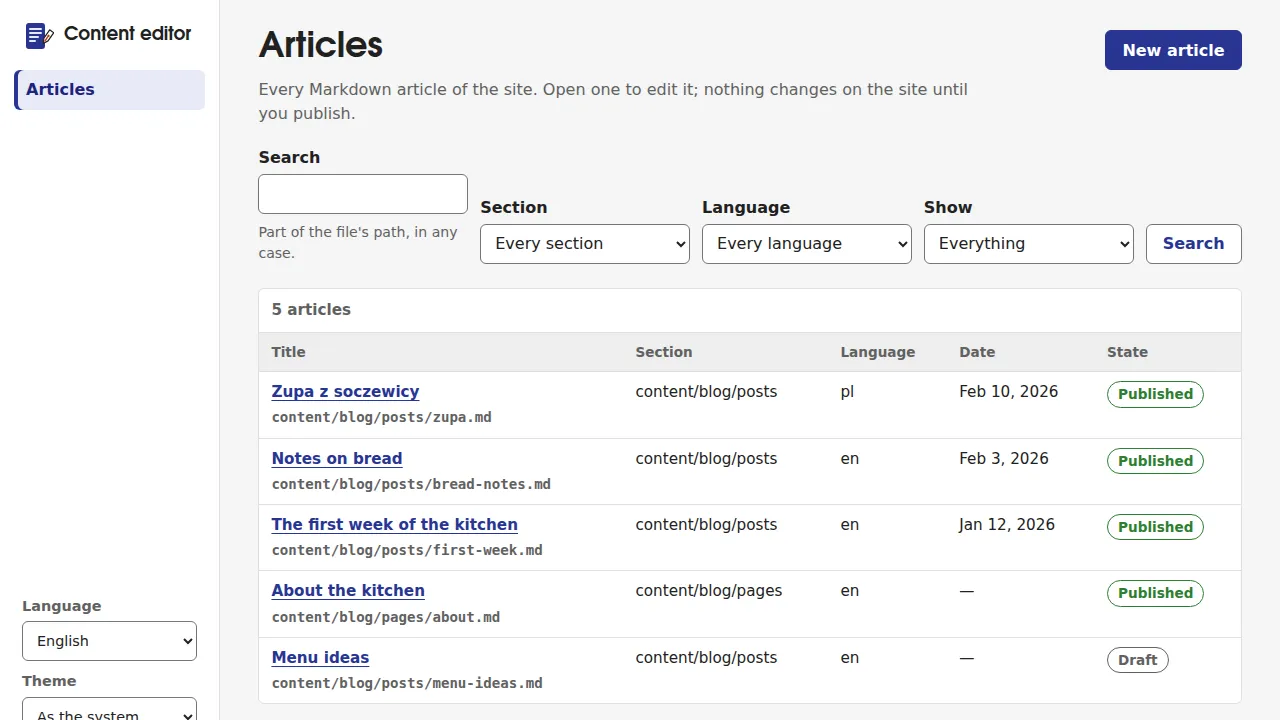
New article asks for a section and a title and names the file the way
ssg makes slugs, so the file name and the URL agree. The editor puts the
simple front matter keys in a form (title, description, date, tags, a
"Published on the site" box that writes status: publish) and the text in
a Markdown area with buttons and keyboard shortcuts. The preview beside it
is close to the site, not identical: the build has the last word.
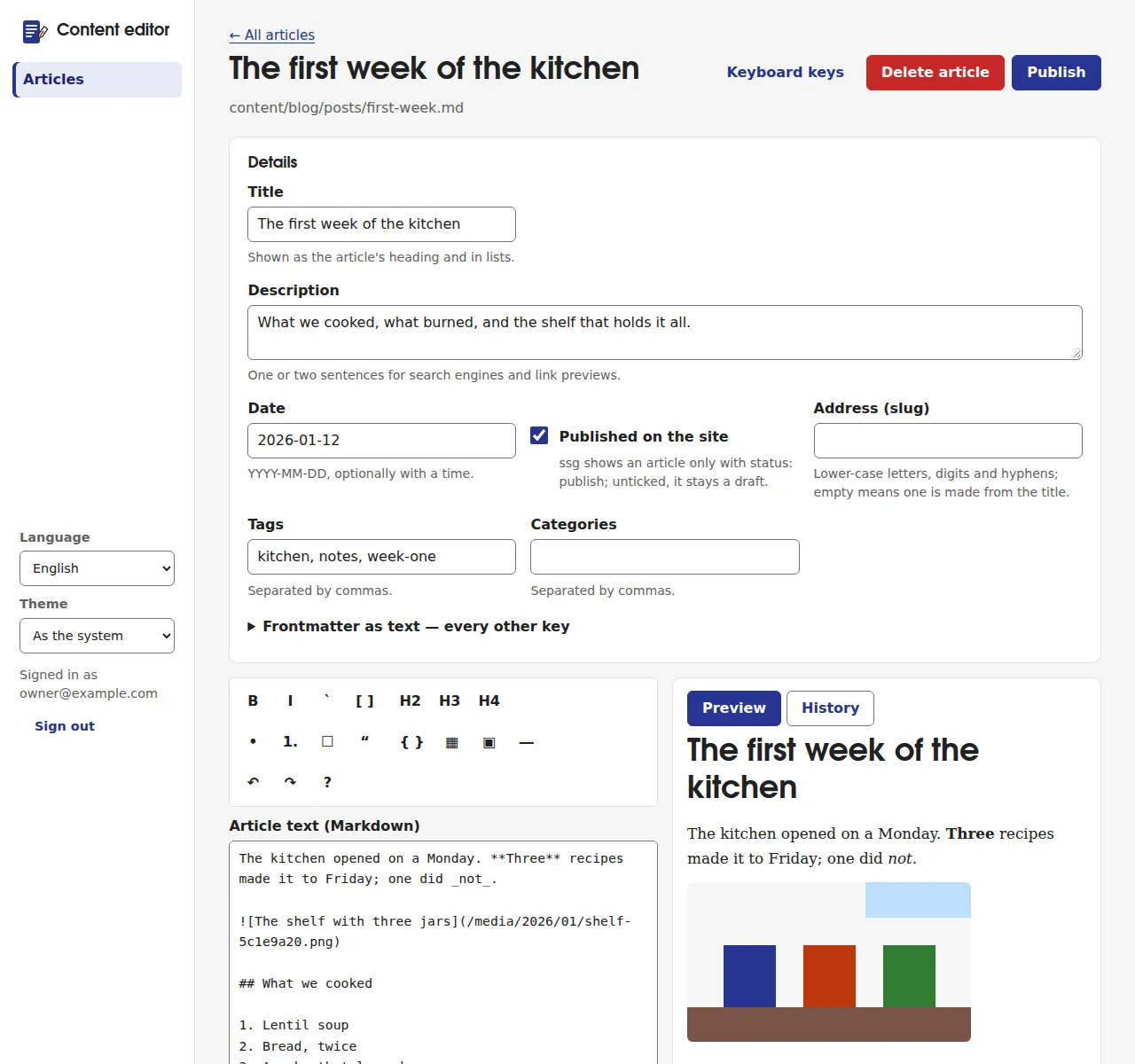
Paste an image into the text and it goes in at the cursor. It waits in the browser until you publish, and then goes into the same commit as the article, under a name made from its month, its original name and a hash of its bytes. The same image always gets the same name, so it is never stored twice. Images already in the repository are in the media library.
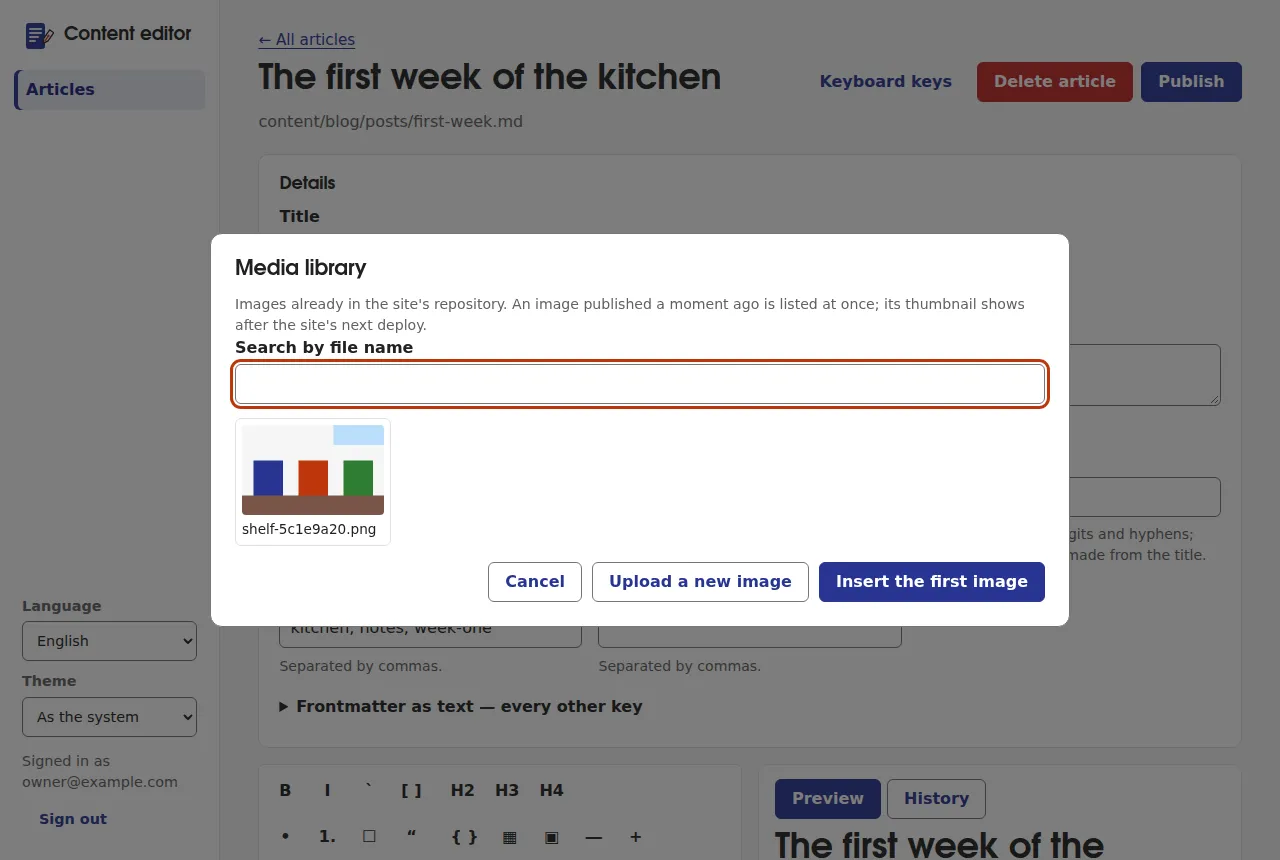
Only PNG, JPEG, WebP, GIF and AVIF are taken, recognised by their bytes. SVG is refused: an SVG served from the site's own host can run a script there. On Cloudflare's Free plan a publication may carry 10 files and 2 MiB in total, and the editor says so before sending anything larger.
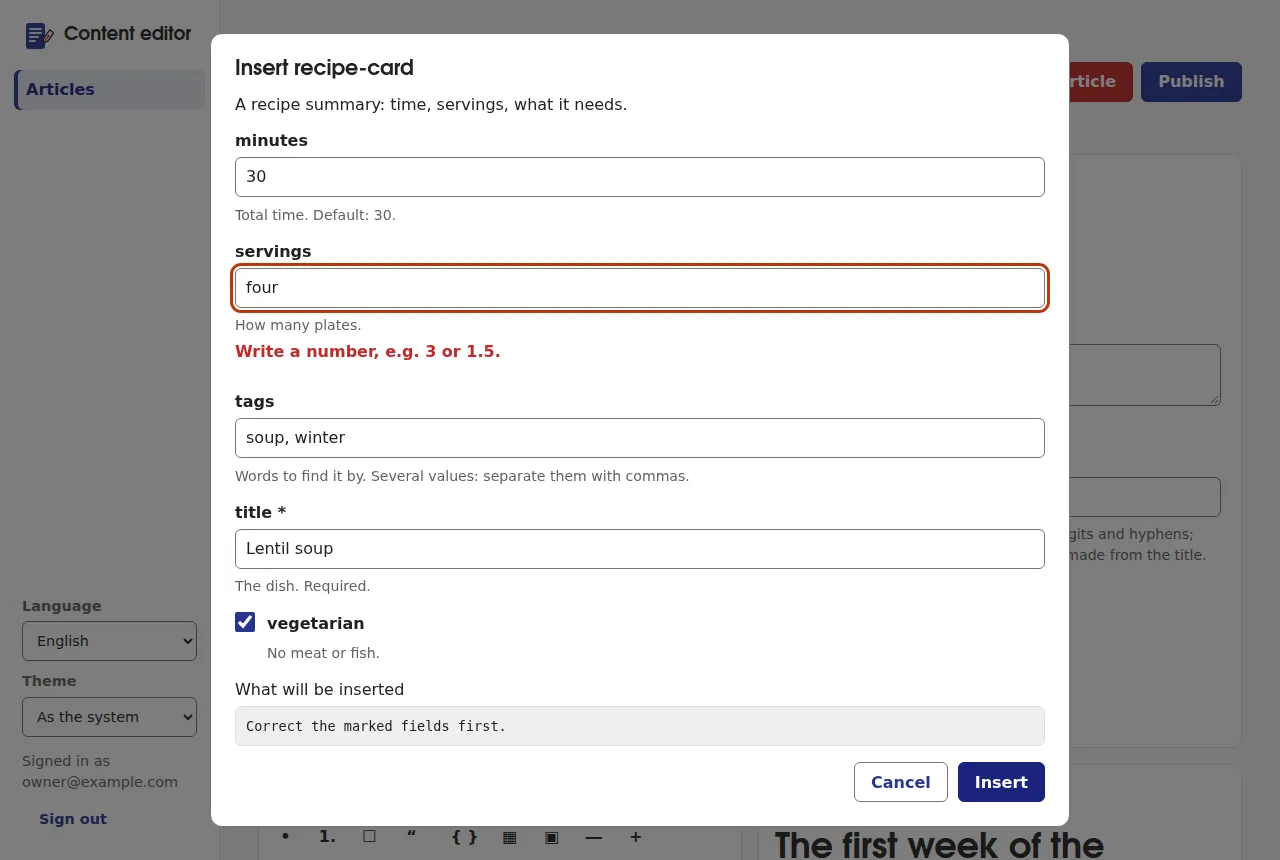
Insert lists what else an article can hold: the site's components with
a form built from their props, the shortcodes from .ssg.yaml, and blocks
such as tables. A value the component cannot accept is marked on its field
before anything is inserted.
Publish shows every change and asks for a commit message, which goes
into the site's history with your name. One click later the commit is on
main, and the site's CI deploys it.
5. When two people edit the same article
Say you opened "Notes on bread" and someone else published a change to it before you did. Your publication is refused, nothing is overwritten, and the panel shows how your version differs from the one now in the repository. You combine them, take theirs, or go back to editing on top of theirs. A change to some other file of the branch is not a conflict: your commit simply goes on top.
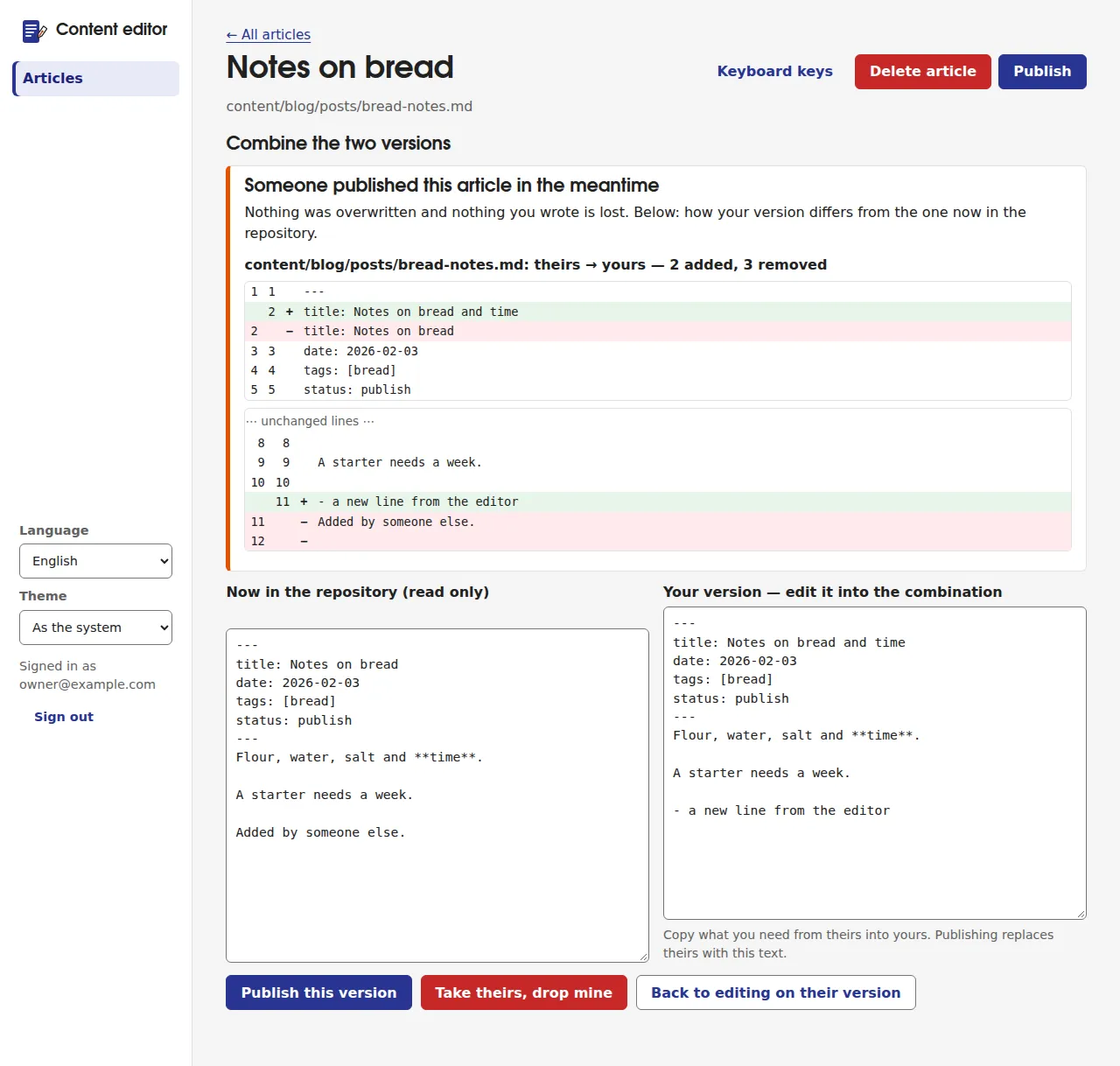
History lists the commits that changed an article. Any of them can be compared with today's text and restored. Restoring is an ordinary new commit; history is never rewritten.
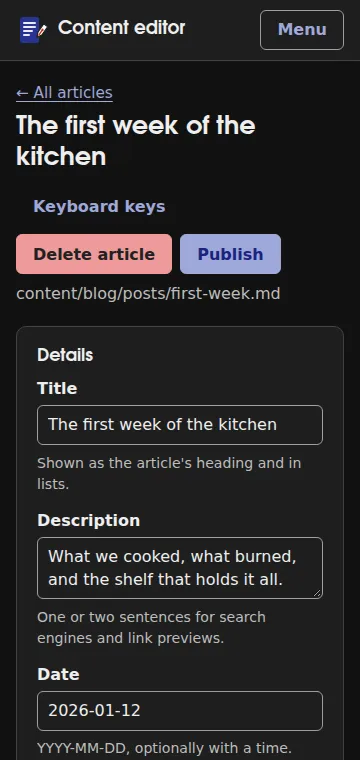
The panel is in English, Polish, Hindi, German and French, light and dark, and works on a phone.
6. A darker grey
designer-ui is set up the same way, with the DESIGNER_ prefix
(designer guide). Its Colours and fonts view reads the
theme's tokens.css and checks every text colour on every background it is
used on, in light and dark, against WCAG 2.2's 4.5:1.
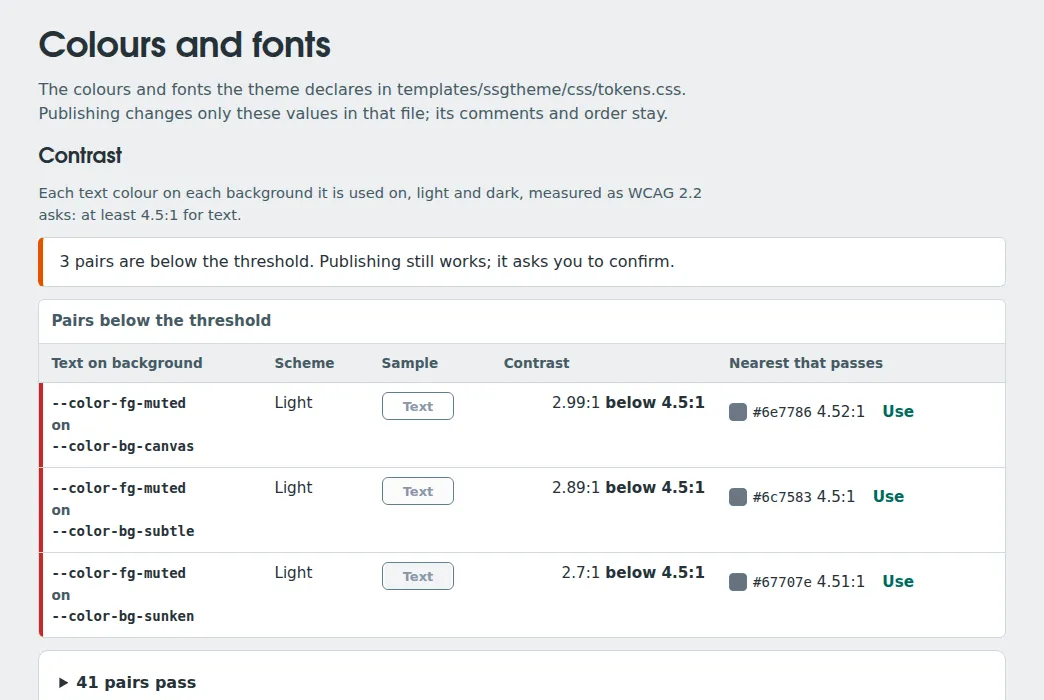
Here the muted text is too light on all three backgrounds. Use takes the
nearest colour of the same hue that passes. The check never blocks: if you
publish a pair below the threshold, the panel asks you to confirm. Only the
values in tokens.css change; its comments and order stay. Because that is a
theme file, it needs designer-ui:theme, a sensitive permission: templates
are code the build runs.
Settings shows every ssg setting, grouped and described by the schema
ssg exports (ssg config schema), with where each value comes from. The
panel never writes .ssg.yaml. It writes .ssg.designer.json beside it,
which ssg lays over .ssg.yaml and validates the same way, so a typo stops
the build with the key named rather than shipping. Settings that run
commands, deploy or name files the build reads are visible to everyone but
need designer-ui:advanced to change. Secrets are only ever "set" or "not
set", and the panel accepts a $NAME reference, never a value.
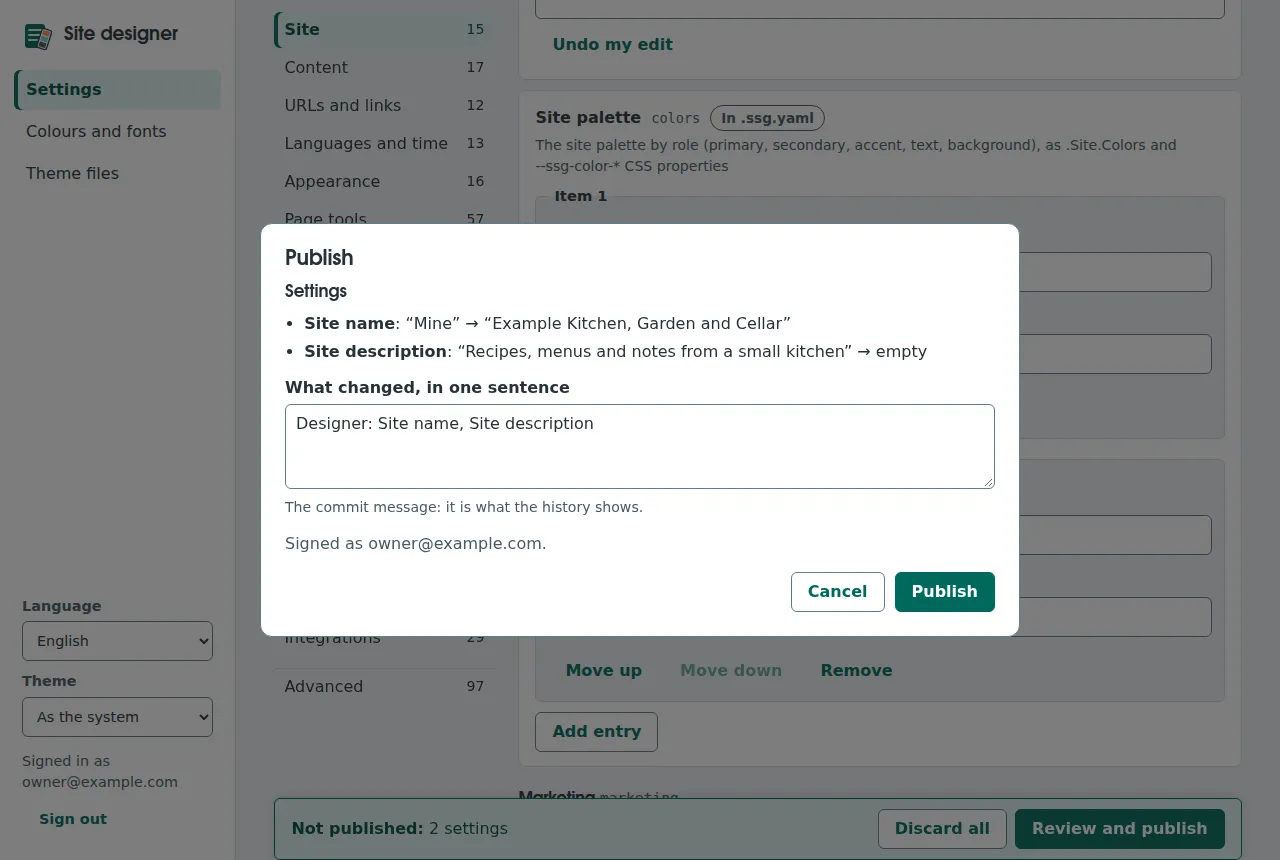
Settings and theme changes wait in the panel until Review and publish, which lists them in words and sends them as one commit.
7. The same, through an AI assistant
Both workers have an MCP endpoint, POST /editor/mcp and
POST /designer/mcp, with the same operations and the same permission
checks as the panel. The tool names follow ssg's local ssg mcp
(content_list, content_read, content_update, media_upload,
designer_config_set…), so a prompt written for one works with the other.
The difference: here every write is a commit that your CI deploys.
An assistant signs in like any script, with an auth service token:
-
In the accounts panel, Service accounts: create one, say "assistant", and give it a role with what the job needs.
editor-ui:readalone is read-only. Writing articles needseditor-ui:publish, which is sensitive, so an owner must allow it when creating the token. -
Exchange the token for an access token, which lasts 10 minutes:
1ACCESS=$(curl -sf -X POST -H "authorization: Bearer $SSG_SERVICE_TOKEN" \ 2 https://example.com/api/auth/token | jq -r .accessToken) -
Give the client the endpoint and the token:
1{
2  "mcpServers": {
3    "kitchen-editor": {
4      "type": "http",
5      "url": "https://example.com/editor/mcp",
6      "headers": { "Authorization": "Bearer <access token>" }
7    }
8  }
9}
Ask it to "add a line about the starter to the bread notes", and it calls
content_list to find the article, content_read to get its text and
version, and content_update with that version and a commit message. If you
published in between, it gets the same 409 conflict with both texts as the
panel would. It sees only the tools its token allows, and a refusal is a
tool result naming the missing permission.
Three things to keep in mind:
- The token expires after 10 minutes. A client that can run a command to build its headers should run the exchange each time. OAuth sign-in for MCP clients is not built yet.
- What the assistant reads is data written by people. The tool descriptions say so, but a model can still be talked into acting on text hidden in an article. Give its token only what you would give a person who might be fooled.
- One call, one commit. Several files go in one call as
changes[].
The calls with curl, and how the remote tools differ from ssg mcp:
EDITOR-API and MCP.
What it does not do, and what was not tried
- No pull requests or preview deployments. A publication is a commit on
the branch. A branch that requires pull requests or status checks refuses
it (
409 branch_protected). - GitHub only. Other repository hosts are not built.
- Free-plan limits on every plan. 10 files and 2 MiB per publication; the Paid values are measured but not switchable yet.
- No preview of the site with new colours before publishing; the contrast table and samples stand in for it.
- Raw HTML in Markdown is rendered. Whoever holds
editor-ui:publishcan put a script on the site's pages, which share an origin with the admin panels. That is why the permission is sensitive. Read each worker's "What it protects and what it does not" before handing permissions out. - Not tried live. Everything here ran locally against a stand-in for GitHub. No Cloudflare account and no real repository were used, and the measurements of CPU time and memory come from Node, not from Cloudflare's machines.
Read on
- Editing content in the browser: setup, permissions and roles, publishing, images, MDDB.
- Limits, local preview and troubleshooting.
- Settings, colours and theme in the browser.
- REST and MCP for scripts and assistants.