
Post
ssg 1.9.9: One Sign-In for Every Panel
1.9.8 gave the newsletter template a sending panel. Like the comments panel before it, that panel opened with one shared password. That is fine while one person runs the site, and it stays a fully supported mode. It stops being fine when a second person needs to send the newsletter but should not be able to erase subscribers, or when you want to know who scheduled Tuesday's mail.
1.9.9 adds two optional workers for that case:
auth: accounts for the people who run the site. Invitations, roles, a permission for each action, a second factor and an audit log.core: the admin home page, a navigation bar shared by every panel, module management, and the panels in the site's own colours.
comments, newsletter and newsletter-ui can now accept an auth session
instead of their password. You sign in once, and each panel lets you do what
your role allows.
This post follows one site from an empty accounts database to two people working in it. The screenshots come from that run. All data in them is invented, and every address is on an example domain. The full steps, with every command and setting, are in the admin guide.
The shape: one sign-in, permissions per action, modules that describe themselves
One sign-in. auth issues a short access token (ES256, 10 minutes by
default) in a host-wide cookie. The other workers do not call auth on every
request. Each one carries a copy of a single verifier file and checks the
token itself with auth's public key. If auth is down, a token that was
already issued keeps working everywhere until it expires.
Permissions per action. Each worker declares what its admin API can do:
newsletter:read, newsletter:edit, newsletter:send, newsletter:erase,
comments:moderate, and so on. A role is a named set of these, and the
token carries the account's set. A newsletter route that sends mail asks for
newsletter:send and nothing else. An account without it gets 403 with the
name of the missing permission.
Modules that describe themselves. Each template ships a module.json
with its name in five languages, its panel, its navigation, its permissions
and how to switch it off. When core is in workers:, the build reads every
manifest and writes a registry that the core function imports. A worker
deployed on its own, such as newsletter-ui, joins the registry through a
new modules: key in .ssg.yaml. core has no built-in list of modules: a
worker you write yourself appears once it has a manifest.
Three things are deliberately not part of this:
- The password does not go away. Each panel still checks Cloudflare
Access first, then
auth, then its own password. One person with one panel needs no accounts, roles or second database. If you already use Cloudflare Zero Trust, Access stays the natural choice. coreis not a security boundary. It never forwards a request to a module and never authorizes anything on a module's behalf. It lists and links. When it hides a module from someone, that only tidies the menu: the module still refuses or admits that person on its own terms.- Nothing switches on by itself. A worker uses
authonly when you set its<PREFIX>_AUTH_*variables. A half-set configuration answers503naming what is missing; it never falls back to the password.
How this was tested
Earlier checks of these workers used a stand-in for auth: a test key and
hand-made tokens. For this post they ran together with real tokens. The demo
site was scaffolded with ssg new worker for newsletter, comments,
auth, core and newsletter-ui, and built with the release binary.
A small server then served everything on one origin, as a Cloudflare Pages
project would: the functions the build copied into the output, the
newsletter-ui Worker under /newsletter-admin, and the static files.
auth signed tokens with a key from its own auth-keys.mjs. The other four
workers verified them with the public key that script printed. core read
the registry the build wrote. Databases were in-memory SQLite, mail went to a
pretend SMTP server, and the browser was driven by a script.
The parts worked together without changes. The run did turn up one small bug: an account created from an invitation showed "Last sign-in: Never" in the accounts panel, although the audit log recorded the sign-in. It is fixed, with a test.
The first owner
auth needs its own D1 database, a signing key from the script it ships, and
a one-time bootstrap token. The first account is created with one request:
1curl -X POST https://example.com/api/auth/bootstrap \
2  -H 'content-type: application/json' -H 'x-ssg-auth: 1' \
3  -d '{"token":"<AUTH_BOOTSTRAP_TOKEN>","email":"[email protected]","password":"<12+ characters>","name":"Maja"}'
That account gets the built-in owner role, which holds every permission.
After that the route answers 404 whatever you send.
The second factor is off until you set one more secret, AUTH_MFA_KEY.
The guide sets it before the bootstrap. Without it, the owner account is
protected by its password alone. There is a further risk until the owner
enrols a factor: an owner with no factor can enrol one right after a password
sign-in, so anyone who knows that password could enrol their own phone first.
That is why the next step comes straight after the bootstrap.
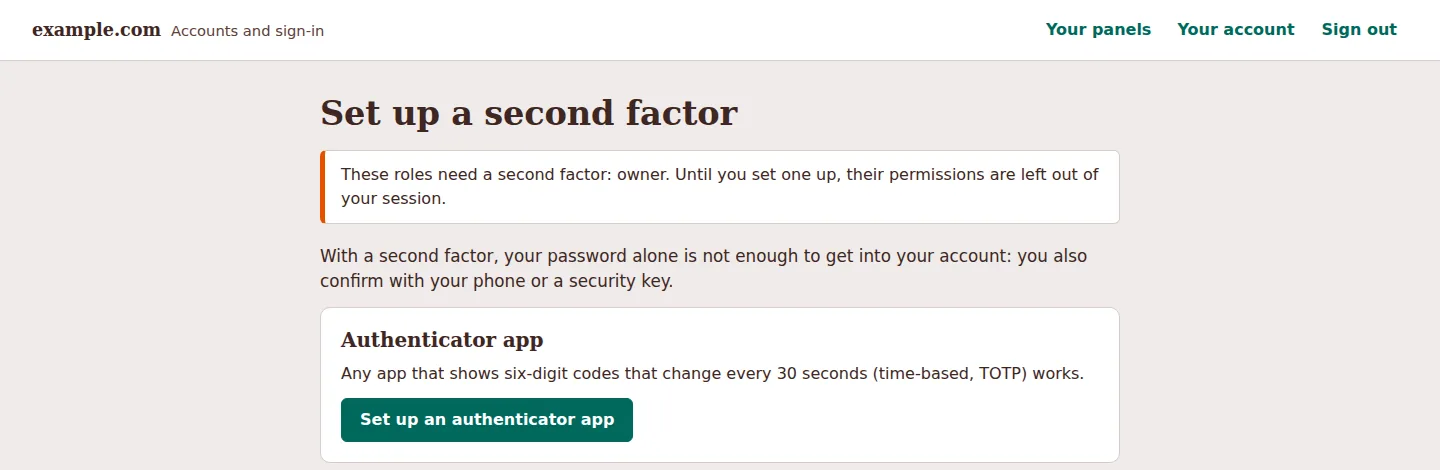
When Maja signs in, owner needs a second factor she does not have yet, so
the login page sends her to set one up. Until she does, her session carries
none of the owner's permissions. The admin home confirms it: it shows her no
modules at all.
The QR code is drawn by the worker itself, so the secret never goes to an outside service. The key is also shown in groups of four for typing by hand. Codes are standard TOTP (six digits, 30 seconds, SHA-1), because many apps ignore the stronger options. In the run, the script computed the codes the same way a phone app would. Once the first code is accepted, the next page shows ten backup codes, once.
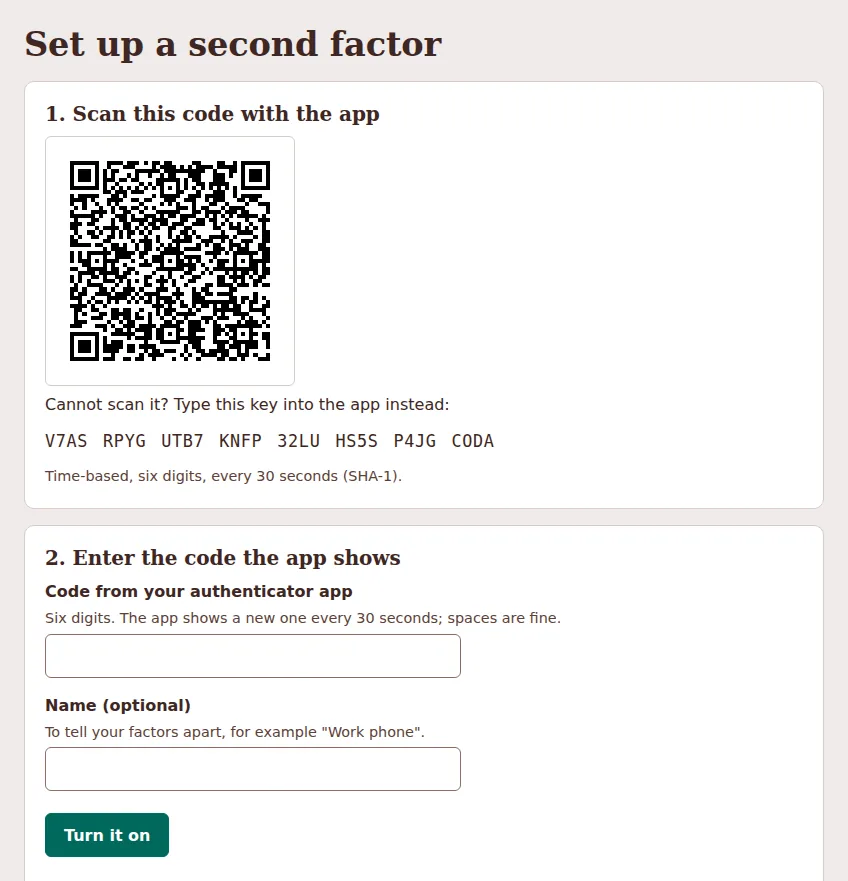
From then on the password alone opens nothing.
Passwords are hashed with PBKDF2-SHA256 at 100 000 iterations, the most
Cloudflare's production runtime accepts. That is below current guidance for
PBKDF2, and the second factor makes up for it. One hash took about 9 ms of
CPU on a fast local machine, close to the 10 ms per request of Workers Free,
so plan on Workers Paid for auth.
Inviting an editor
Accounts exist only by invitation. In the accounts panel Maja invites Eva and
ticks the built-in newsletter-editor role. This demo has no mail transport
for auth, so the panel shows a one-time link, once, to pass on. With one
configured, the invitation goes out by mail in the invitee's language. The
form offers only the roles Maja holds herself.
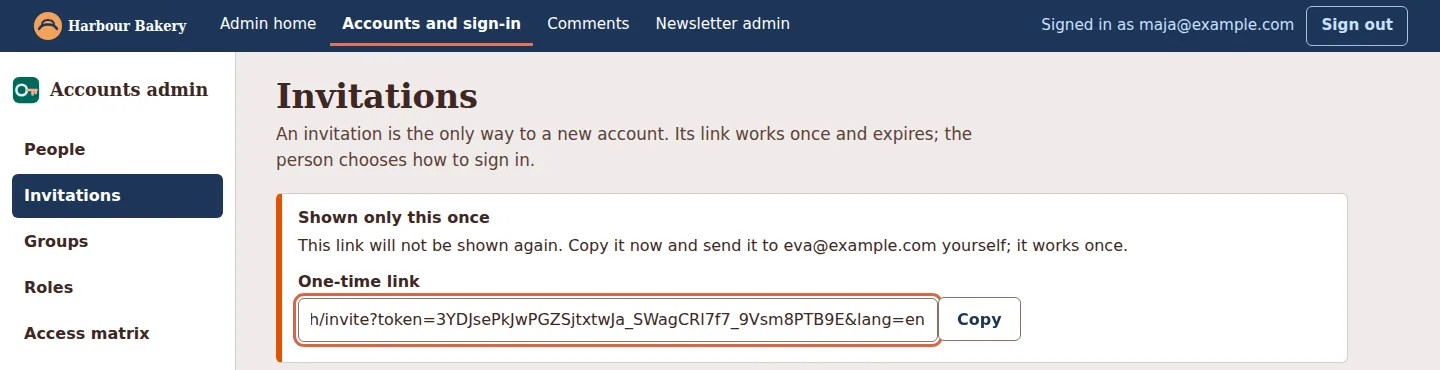
The bar at the top of that screenshot comes from core. The accounts panel
loads /core/nav.js and gets a bar linking every panel the person may open,
with the site's name, logo and colours. That look is set once in .ssg.yaml:
1admin_theme:
2  name: Harbour Bakery
3  logo: /img/logo.svg
4  logo_dark: /img/logo-dark.svg
5  main: "#1d3557"
6  accent: "#e76f51"
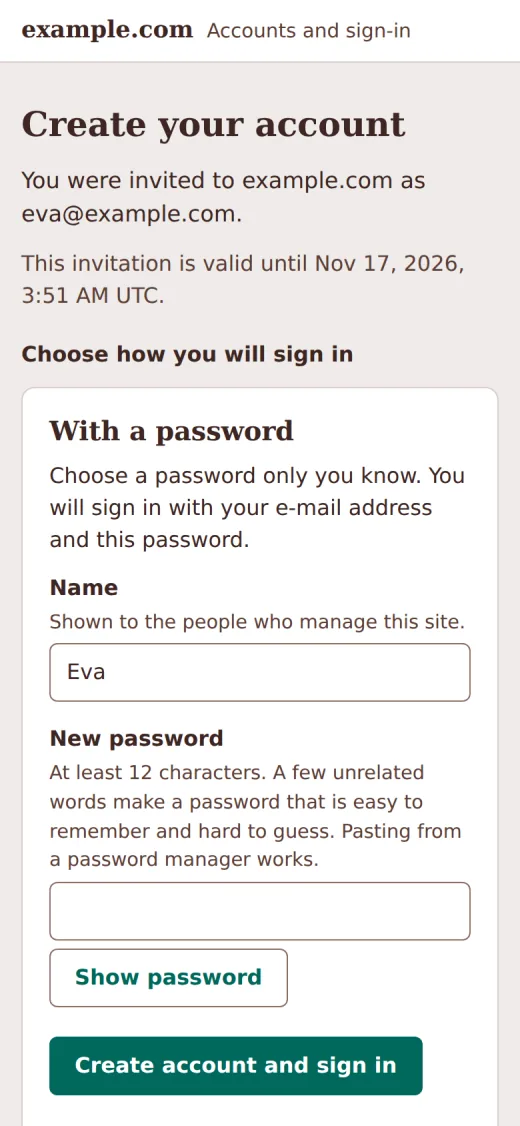
Eva opens the link on her phone, chooses a password and is signed in.
newsletter-editor includes newsletter:send, which mails real people, so
by default it needs a second factor too. Eva sets up her authenticator app
before the role counts. You can change that per role with AUTH_MFA_ROLES.
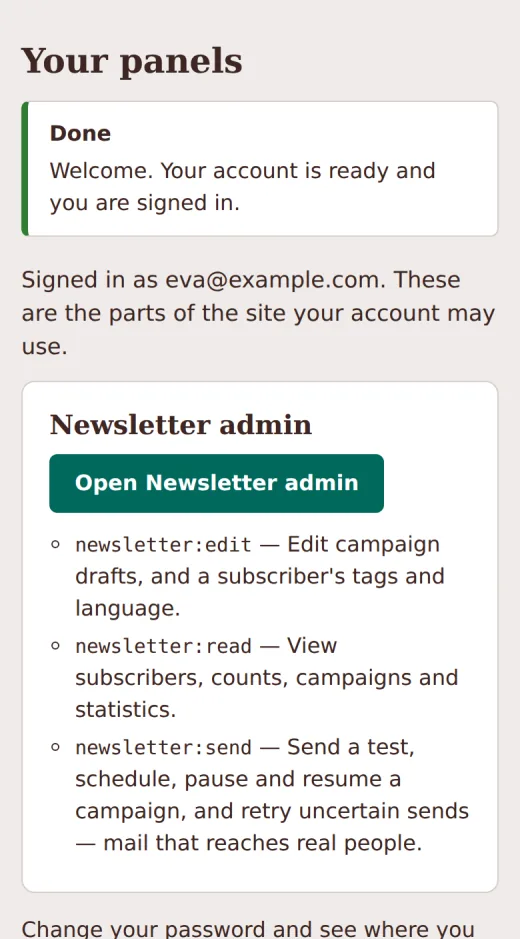
Her "Your panels" page then lists what her account may do and where.
What the editor sees
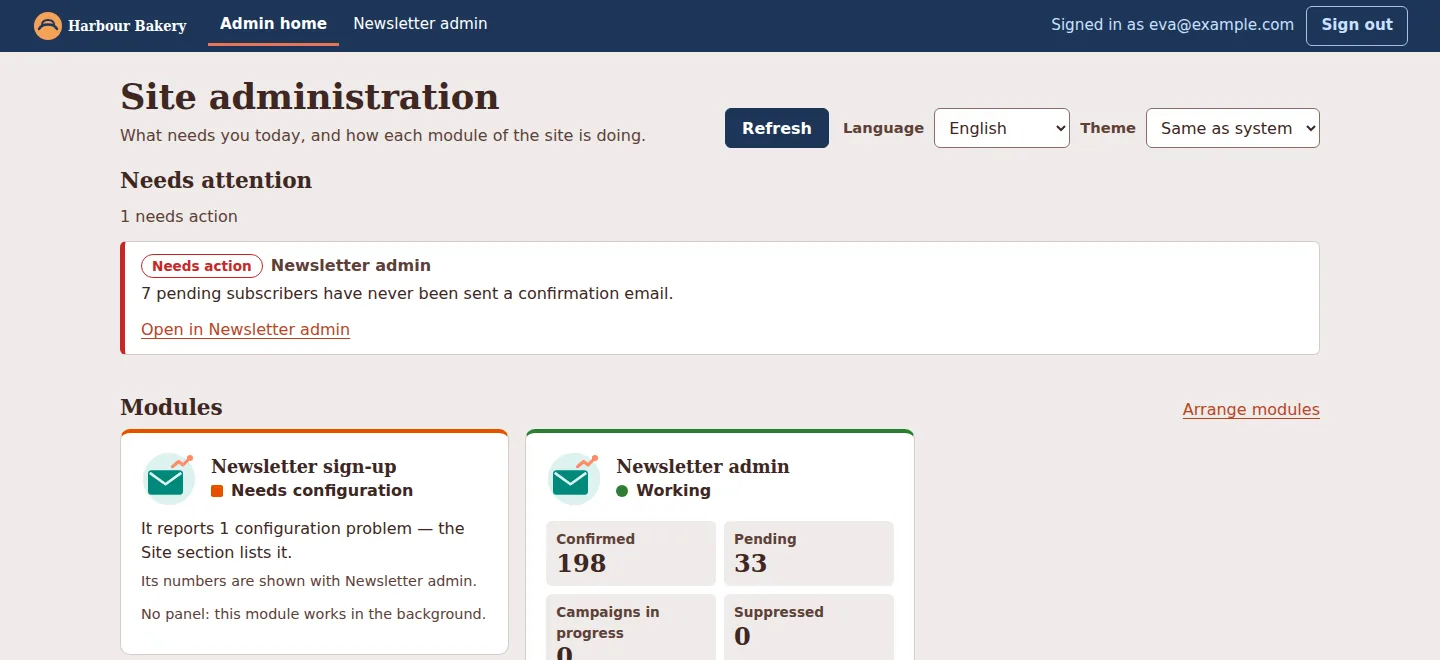
On the admin home Eva sees only what her permissions open. The bar has two links, Admin home and Newsletter admin. "Needs attention" shows one item, for the newsletter. Comments and accounts are absent: Eva holds no permission there.
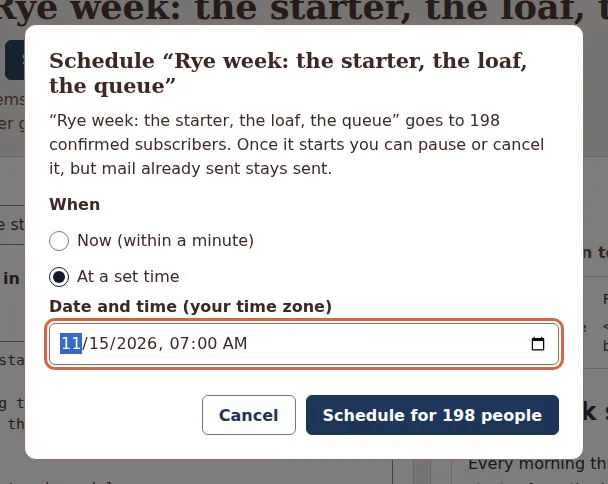
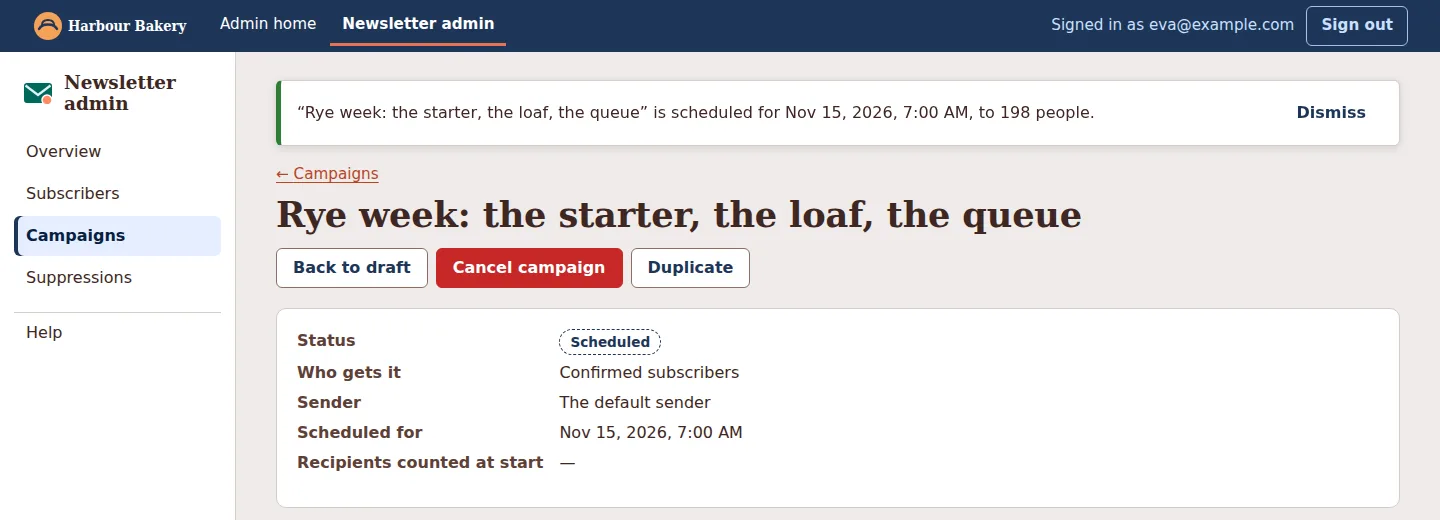
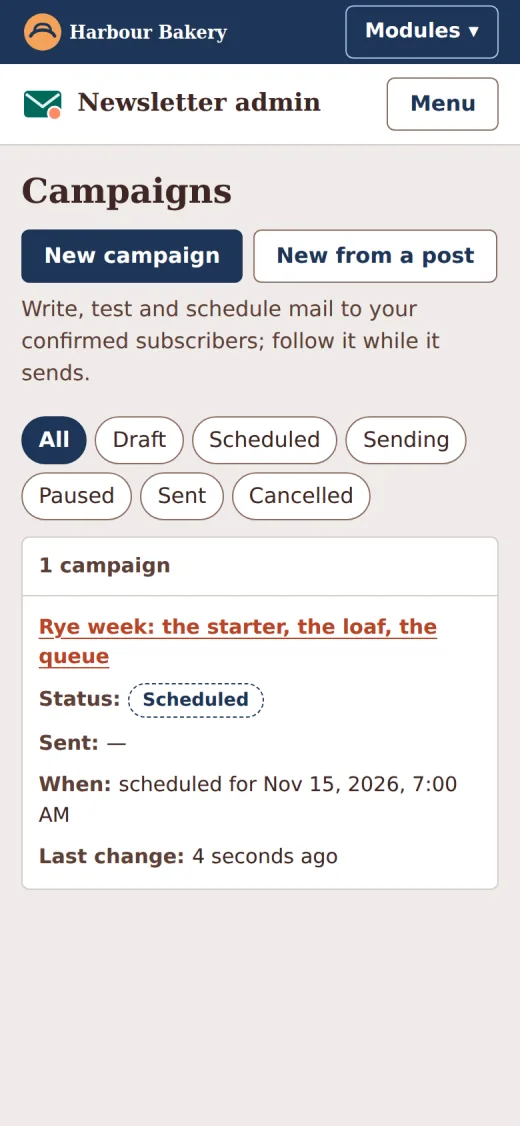
She writes a campaign and schedules it for seven the next morning. Both
steps are within her role: drafts need newsletter:edit, scheduling needs
newsletter:send.
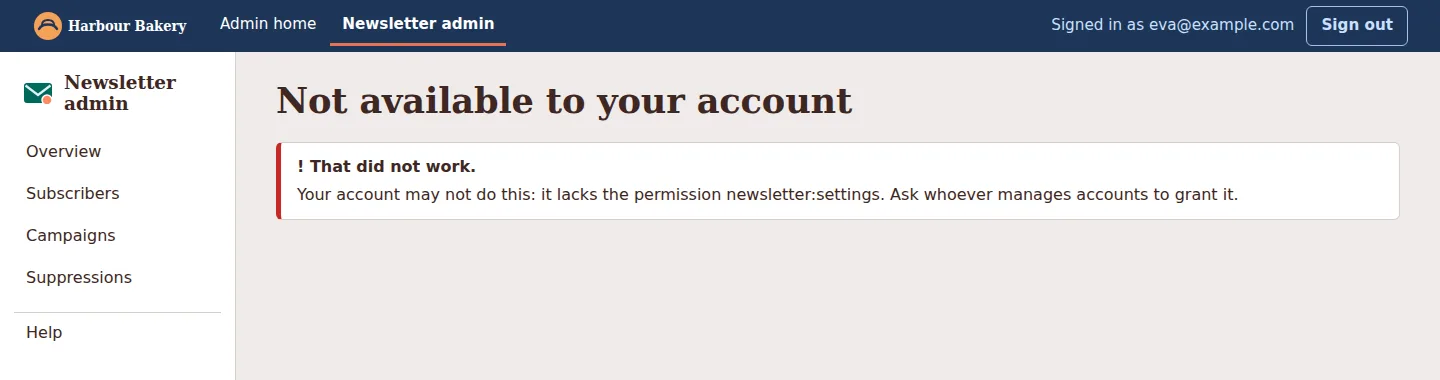
Some things are outside her role. The newsletter panel leaves out Import,
Settings and Activity from her menu. If she opens Activity by its address
anyway, the panel names the permission she lacks. The API refuses the same
request with 403 whatever the page shows: hiding a button only tidies the
page, the check happens in the API. The comments panel behaves the same way
when she opens it directly: "Your account is missing the permission
comments:read."
On a phone, the bar folds its links behind a Modules button.
What the owner sees
Maja's admin home lists everything that waits for a person across all modules, most urgent first, each with a link into the panel that can deal with it. Below that is a card per module with up to four numbers, and a chart when the module provides a series. The home page asks the modules when it is opened or refreshed, never on a timer: each summary costs D1 reads.
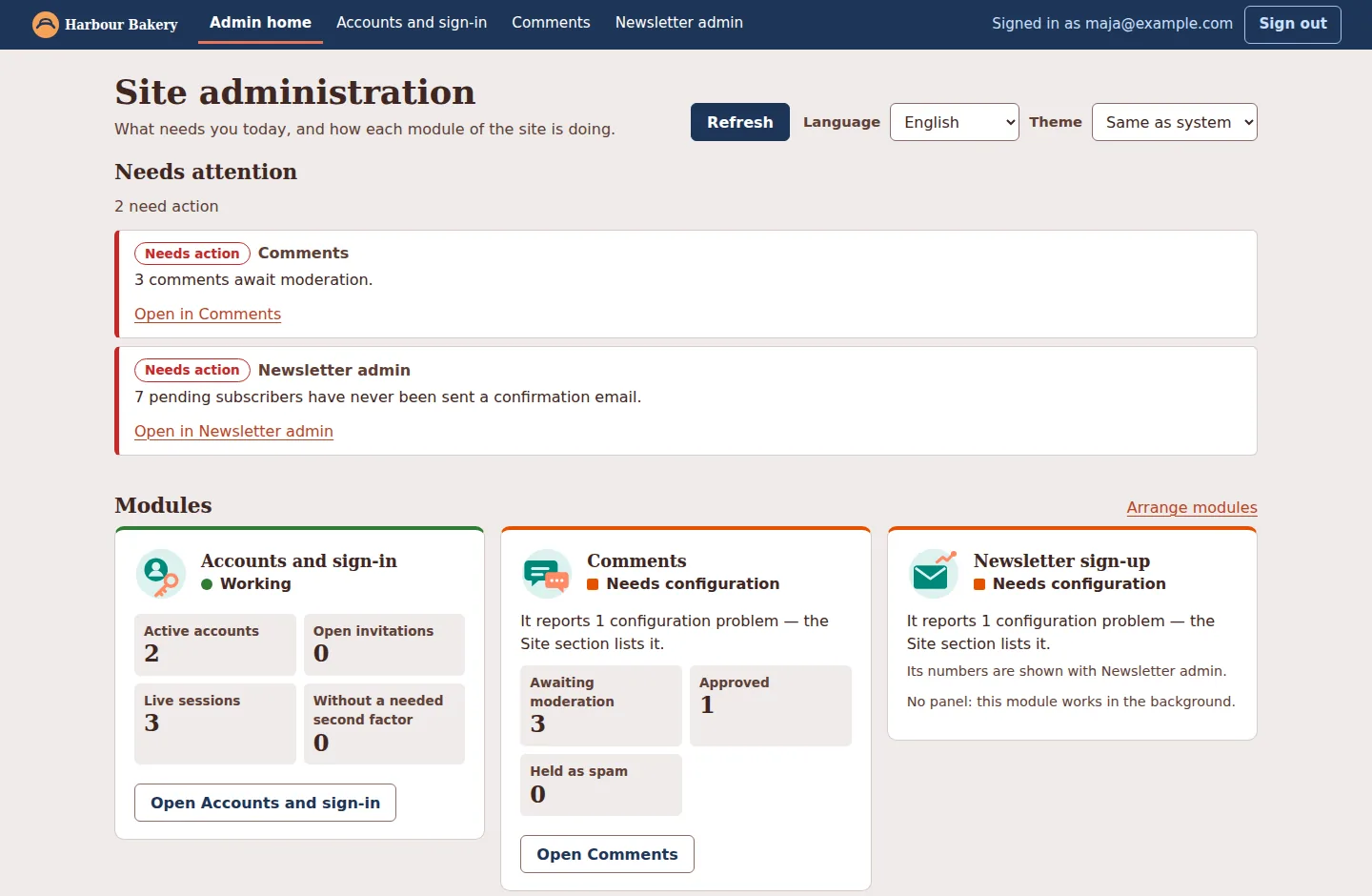
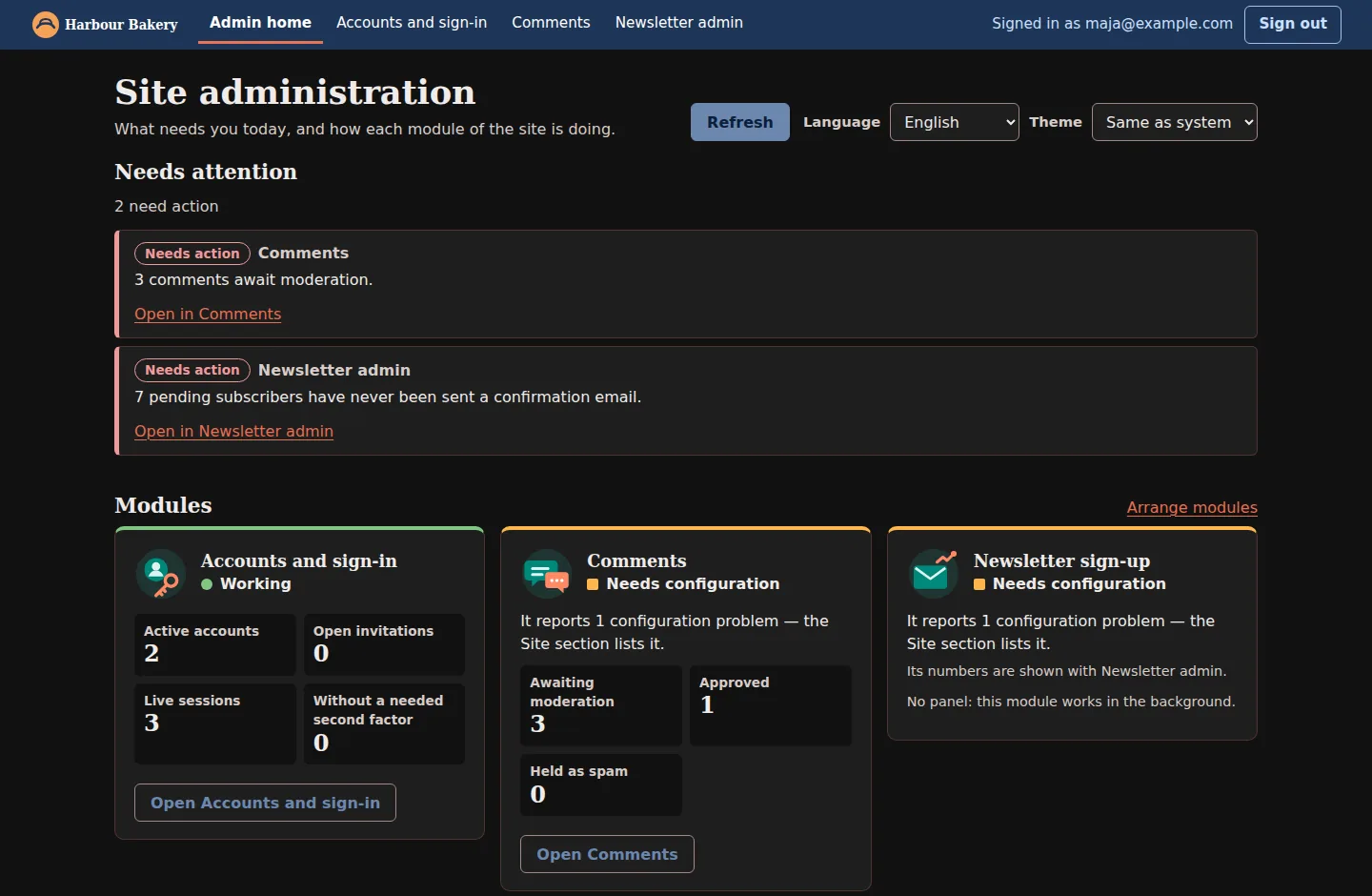
"Needs configuration" on two cards is real: the demo set no Turnstile secret, so the comment and sign-up forms would refuse every submission. The Site section names the variable to set.
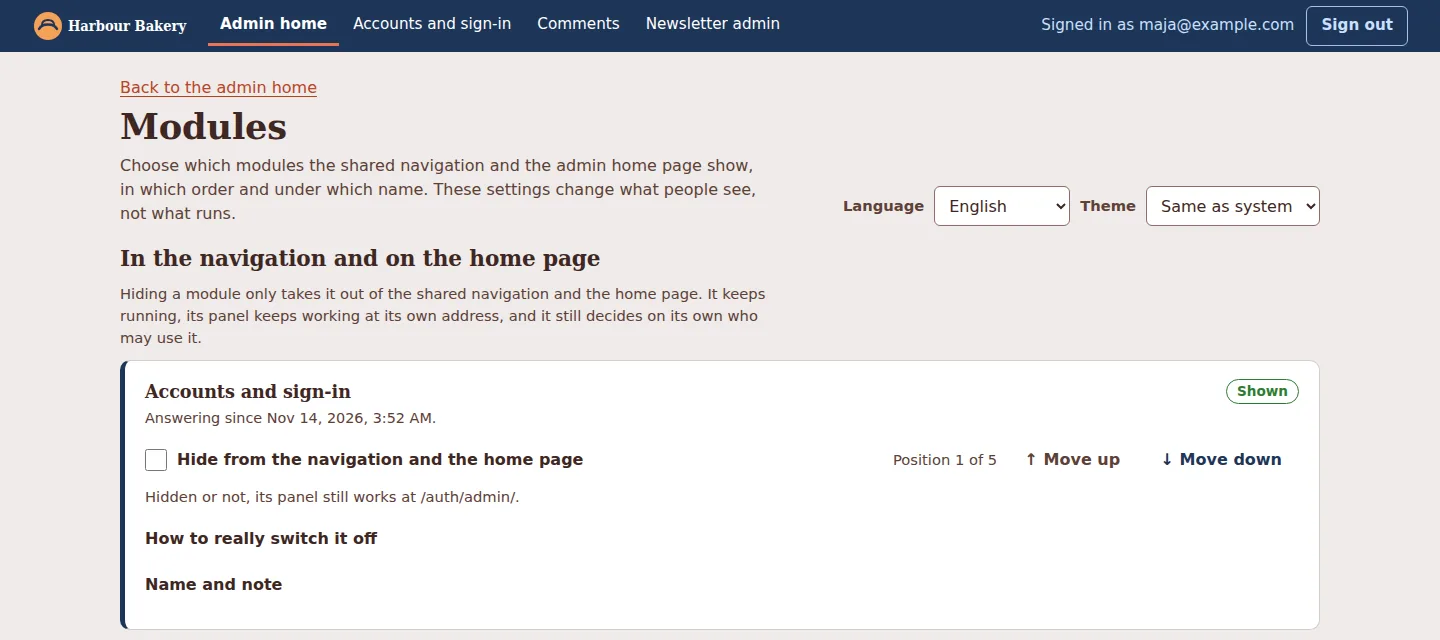
Modules (/core/#modules) changes what the bar and the home page show,
in which order and under which label. Next to each switch it says that hiding
does not switch anything off, and what would. It also lists the templates the
site does not use yet, with the command and the configuration each one needs,
keeps a status history and a change log, and exports the settings as a file
to move between environments. It needs the optional CORE_DB database and
the core:manage permission.
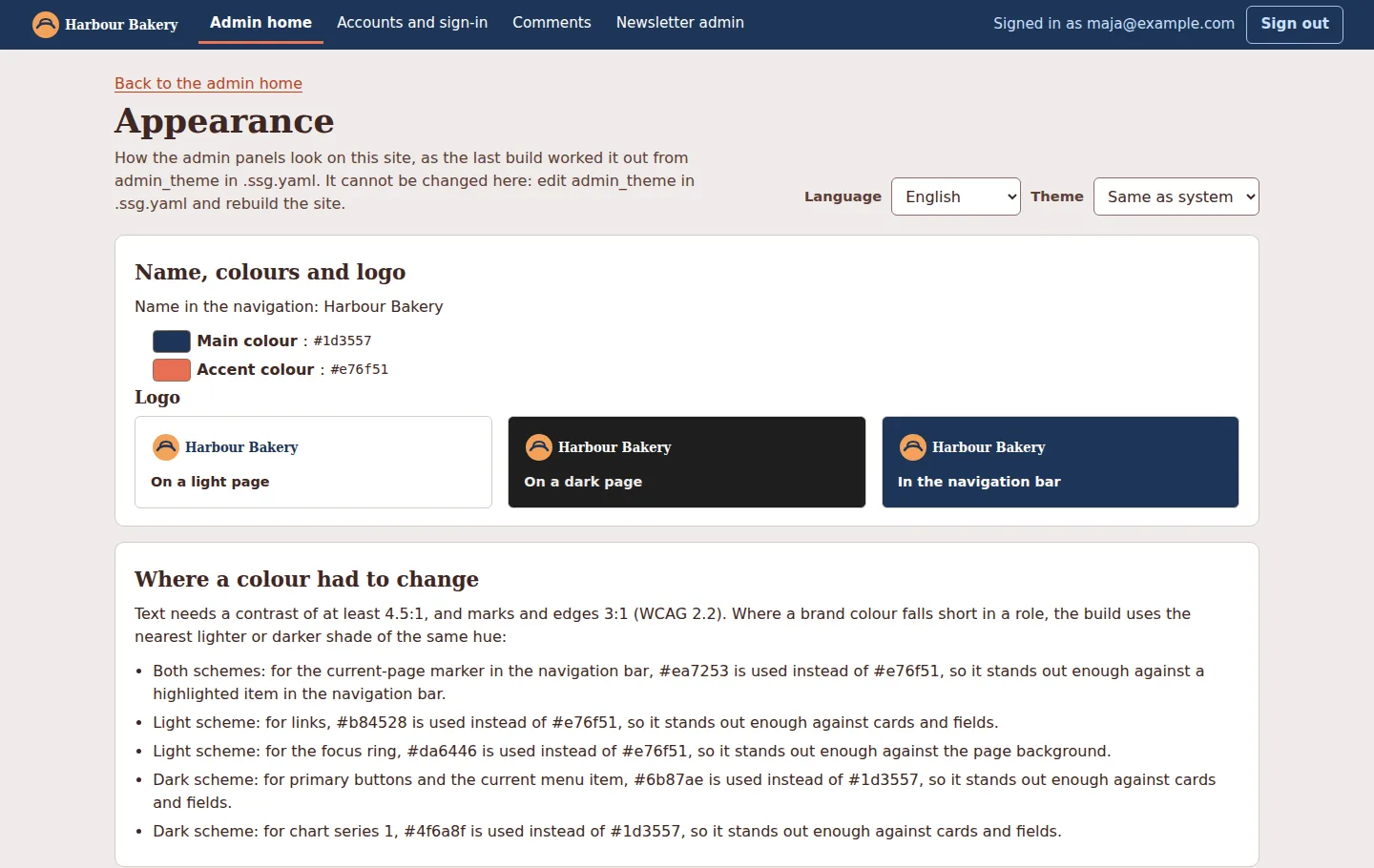
Appearance shows what the build did with the two colours. The accent
#e76f51 is too light for link text on white, so the build kept its hue and
used #b84528 for links. It says so in a sentence, and does the same for
each of the five adjustments it made. Text keeps 4.5:1 against its
background, and focus rings and chart marks 3:1, in both schemes. The state
colours are never taken from a brand: red always means an error.
Who did what
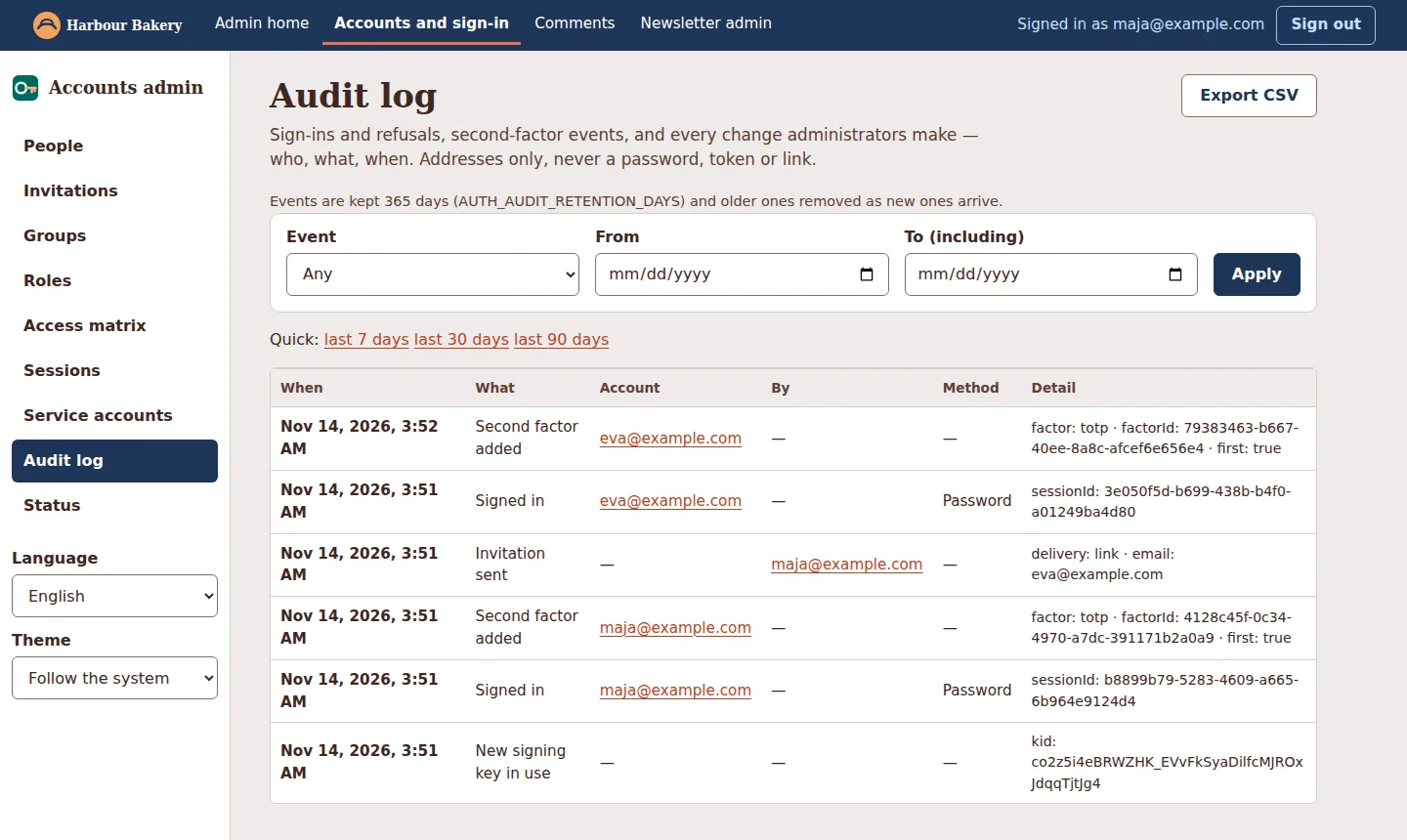
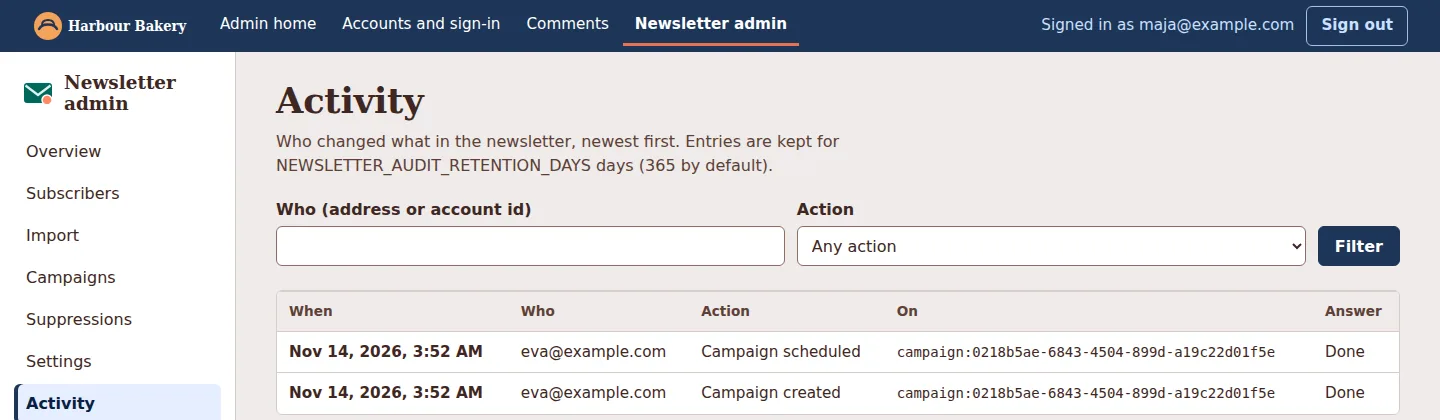
The accounts panel's audit log records sign-ins, second-factor events and every administrative change: who, what, about whom and how. It never records a password, a token or a link. The newsletter panel keeps its own log of every change. Here it shows that Eva created and scheduled the campaign.
Revoking access
The other workers check tokens locally, so a removed role reaches them at the
token's next renewal: at most 10 minutes 30 seconds with the defaults. Ending
someone's sessions in the accounts panel stops auth at once. Tokens already
issued stay valid elsewhere until they expire. A shorter AUTH_TOKEN_MINUTES
narrows that window at the cost of more refreshes.
What it does not do, and what was not tried live
- No passwordless sign-in: a passkey is a second factor, after a password, a login provider or Cloudflare Access.
- One host. The session cookie belongs to one host, so a panel on another host needs its own sign-in.
- No mail was sent in the run above. The accounts panel gave the invitation as a link because no mail transport was configured.
- Sign-in with Google, Microsoft, Apple, GitHub or Facebook, and Cloudflare
Access as a way into
auth, were built and tested against scripted fakes of those services, not the live ones. Their documentation says so at the top. - The password hash's CPU time was measured locally. Its cost on Cloudflare's machines is unknown, and no Cloudflare account was used for this release.
- The walkthrough above ran locally, with every worker's real code, real tokens and in-memory databases, not on a Cloudflare deployment.
Try it
From the site's root:
1ssg new worker auth
2ssg new worker core
The admin guide continues from there: which worker you need,
the order to install them in, the keys, secrets and variables, the first
owner and their second factor, invitations and roles, newsletter-ui under
modules:, the theme, the Cloudflare Access alternative with its bypass
paths, the cost notes, and the 503 answers you get from a half-finished
configuration. The workers guide helps you choose a sign-in
mode, and the
auth README documents
every route, variable and table.