
Guide
editor-ui: edit content in the browser
editor-ui is an optional Cloudflare Worker that lets the people who write
for a site edit its Markdown articles and images in the browser. Each
publication is one commit to the site's GitHub repository, with the
signed-in person as the author. The site's own CI then builds and deploys it,
as after any push. The worker has no database: the history is the
repository's history, and unsent drafts stay in the browser.
The same operations are available to scripts and AI assistants over a REST API and an MCP endpoint: EDITOR-API. Its sibling for settings, colours and theme files is DESIGNER. Every route, variable and error is listed in the worker's README.
Not the same as
ssg --http --watch --edit. That one is a local editor on your own machine that writes files and commits them to a branch (EDITING).editor-uiruns on Cloudflare, works on the repository through GitHub's API and needs no checkout.
What you need first
- A site built with ssg whose source is in a GitHub repository, and CI that builds and deploys the site on every push to the branch you edit. GitHub is the only repository host in this version.
- The
authworker running on the same host as the site.editor-uihas no password mode and no Cloudflare Access-only mode: without a completeEDITOR_AUTH_*set, every path, the panel included, answers503 auth_not_configured. Every publication needs an author and a permission per action, and a shared password gives neither. Setting upauth: ADMIN-GUIDE. - A Cloudflare account and Node.js with
npx wranglerto deploy a Worker.
Setup in three steps
Scaffold the template from the site's root, then work in its directory:
1ssg new worker editor-ui
2cd workers/editor-ui
1. Repository. In wrangler.toml, set EDITOR_GIT_REPO = "github.com/<owner>/<repo>" and EDITOR_GIT_BRANCH (empty means the
repository's default branch). The worker reads everything else from the
site's .ssg.yaml on that branch: where the content is, the languages, the
shortcodes, the media folder. If it cannot read the file (see
Troubleshooting), EDITOR_CONTENT_DIRS and
EDITOR_MEDIA_DIR name the folders instead.
2. Key. Create a fine-grained personal access token limited to that one repository. On GitHub, as checked on 2026-11-15 (GitHub's guide):
- Profile picture → Settings → Developer settings → Personal access tokens → Fine-grained tokens → Generate new token.
- Token name and Expiration: your choice. An expired token makes
every publication fail with
502 token_rejecteduntil you set a new one. - Resource owner: the user or organization that owns the site's repository. An organization may require an administrator to approve the token before it can write.
- Repository access → Only select repositories → the site's repository.
- Permissions → repository permission Contents → read and write.
Nothing else. Without the workflows permission, GitHub itself refuses any
change under
.github/workflows/: a second wall behind the worker's own path rules. - Generate token, then store it as a Worker secret. It is never written
to
wrangler.tomlor.ssg.yaml:
1npx wrangler secret put EDITOR_GIT_TOKEN
3. Auth. Set EDITOR_AUTH_ISSUER (https://<your host>/api/auth),
EDITOR_AUTH_LOGIN_URL (/auth/login) and EDITOR_AUTH_PUBLIC_KEY (the
AUTH_PUBLIC_KEY= line that node workers/auth/scripts/auth-keys.mjs
printed when you set up auth), or EDITOR_AUTH_JWKS_URL instead of the
key. Then make the permissions known to auth by adding the editor's
names to its AUTH_KNOWN_PERMISSIONS. This command prints the value for
every worker you list:
1node workers/auth/scripts/auth-permissions.mjs workers/*/module.json
Then put your domain in routes (the pattern must cover exactly
EDITOR_BASE, /editor by default) and deploy:
1npx wrangler deploy
The panel is at https://<your host>/editor/. To show it on core's admin
home and in the shared navigation bar, list it in .ssg.yaml:
1modules:
2  - id: editor-ui
3    url: /editor
4    dir: workers/editor-ui
Permissions and suggested roles
| Permission | Allows |
|---|---|
editor-ui:read |
Open the panel; list and read articles, their history and the media library. |
editor-ui:publish |
Sensitive. Publish articles: create, edit, rename. |
editor-ui:media |
Add images to a publication. |
editor-ui:delete |
Delete an article or an image (it stays in the repository's history). |
editor-ui:publish is sensitive because ssg renders raw HTML written in
Markdown: whoever publishes can put a script on the site's pages, which share
an origin with the admin panels. A service token carries it only when an
owner allowed sensitive permissions for that token
(SERVICE-TOKENS).
Roles are created in the accounts panel (/auth/admin/). Suggested
starting points, to adjust to your site:
| Role | Permissions |
|---|---|
| Author | editor-ui:read, editor-ui:publish, editor-ui:media |
| Editor | the above and editor-ui:delete |
| Reviewer | editor-ui:read |
A role change reaches the worker when the person's access token renews:
at most 10 minutes 30 seconds with auth's defaults. Which roles must have
a second factor is set in auth with AUTH_MFA_ROLES
(SECOND-FACTOR).
Using the panel
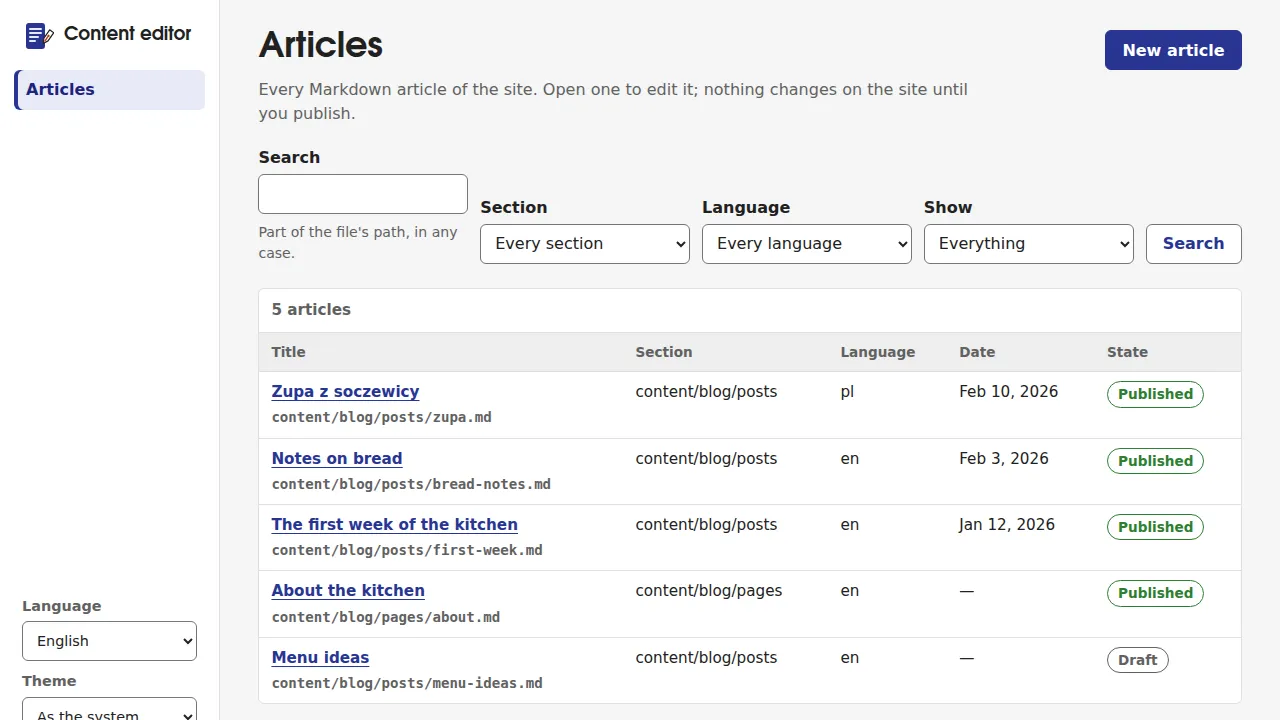
- Articles lists every Markdown file in the site's content folders, with title, section, language, date and state. New article asks for a section and a title and picks the file name from the title, the way ssg makes slugs.
- The editor has a form for the simple front matter keys (title,
description, date, "Published on the site", slug, tags, categories), the
rest of the front matter as text, and a Markdown text area with buttons
and keyboard shortcuts. The preview beside it is an approximation; the
site's build has the final word. "Published on the site" writes
status: publish; unticked, the article stays a draft. - Drafts are saved in the browser (IndexedDB) as you type. They are not shared between devices or people.
- Insert lists what an article can hold besides plain Markdown: the
site's typed components with a form built from their props, the
shortcodes:of.ssg.yaml, and blocks such as a table or a code block. Components come from thecomponents.jsonthe last build published, so a component added on the branch appears after the next deploy. - The panel is in English, Polish, Hindi, German and French, in light and dark, and works at 360 px wide.
How publishing works
Publish opens a dialog with every change and a commit message. The whole publication, text and pasted images, goes out as one commit on the configured branch. It is made only if the files you opened are unchanged on the branch:
- Someone changed the same article since you opened it: nothing is written. The panel shows both versions and their difference; you combine them, take theirs, or go back to editing on top of theirs.
- Someone changed another file of the branch: not a conflict; the commit goes on top of the new tip.
- The branch is protected with required pull requests or required
status checks: GitHub refuses the commit and the answer is
409 branch_protected. Nothing half-done is left behind. Pull requests are not supported in this version, so publish to a branch without those rules. - The branch is never force-pushed and history is never rewritten.
History and restoring
History beside the preview lists the commits that changed the article, newest first, with author, date and message. Any of them can be viewed and compared with the current version. Restore loads the old text as a draft; publishing it is a new commit. After a rename, the history starts at the commit that created the file under its current name.
Images
Paste an image into the text, or pick one from the media library. A
pasted image waits in the browser and is committed with the article, in the
same commit. Its name is <media folder>/<yyyy>/<mm>/<slug>-<hash>.<ext>:
the same image always gets the same name, so it is never stored twice, and
changed bytes get a new name.
Accepted: PNG, JPEG, WebP, GIF and AVIF, recognised by their bytes, never by
the file name. SVG and anything that is markup are refused, because an SVG
served from the site's host can run a script there. The media folder is the
site's <content_dir>/<source>/media (served at /media/), or
<static_dir>/images when the site has no source.
Articles kept in MDDB
A site built from MDDB (mddb: in .ssg.yaml) can be edited the same way
with EDITOR_MDDB_URL and the secret EDITOR_MDDB_API_KEY (MDDB 2.18.8 or
later). An article is then written to MDDB, not committed; images still go to
the repository, and the site shows the change after its next build
(EDITOR_REBUILD_URL can start one). Details and the gaps MDDB leaves:
the README's MDDB section.
Continued in EDITOR-OPERATIONS: limits per Cloudflare plan, running it locally, what it protects, troubleshooting and what is not built yet.